

Branch on a condition
Use Path to send each run down a different route depending on the data, for example handling urgent tickets differently from routine ones. This guide routes orders by amount into three branches.
1. Add the Paths step
- Where the flow should split, click Add Step, open Built-in and choose Path.
- The canvas shows a Paths step with its branches below it. Each branch is a separate Path step.
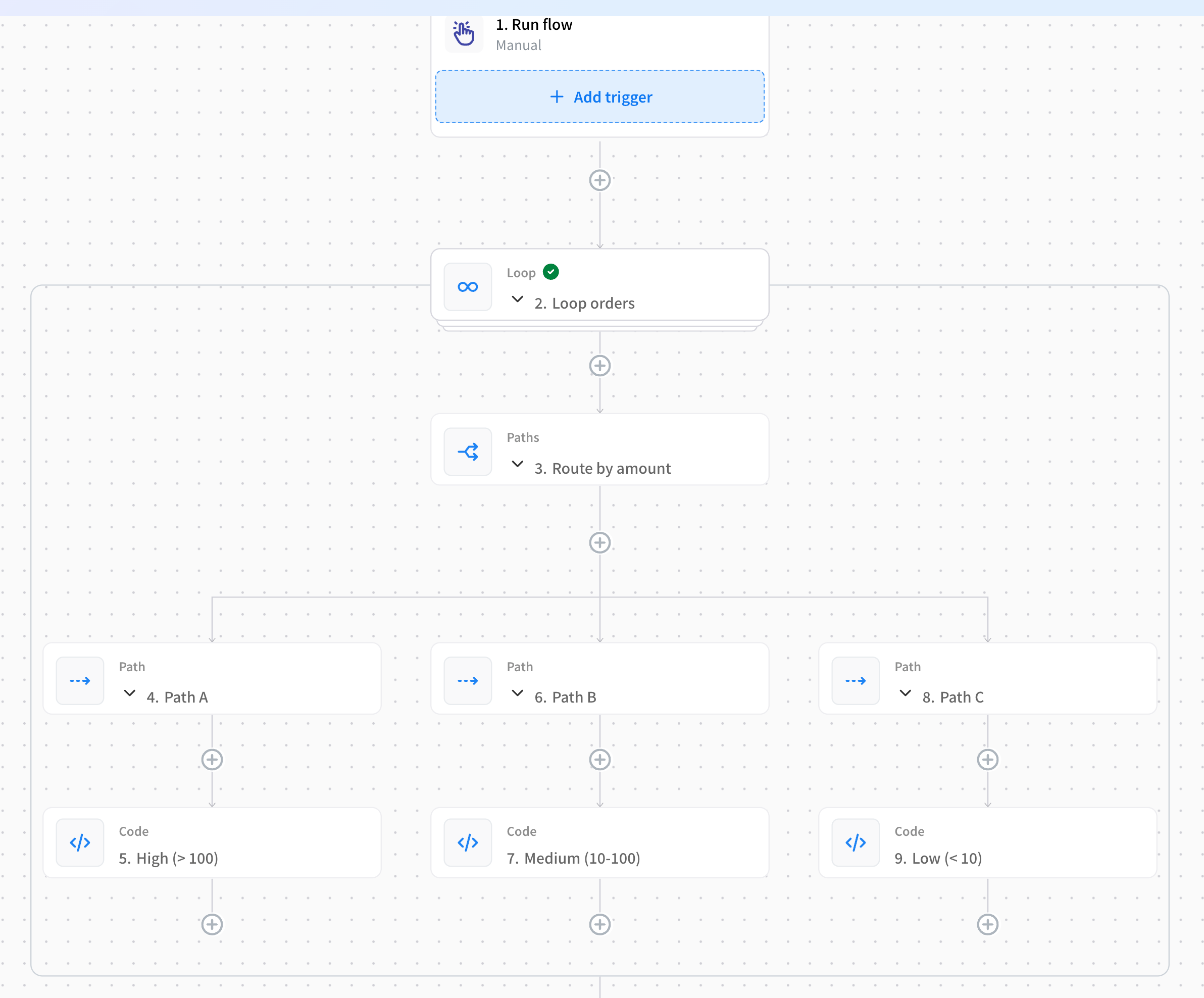
The Paths step itself has no settings: each branch holds its own conditions. To add a branch, click the + directly under the Paths step (Add Path).
Rename the branches so the canvas reads clearly, such as Over 100, 10 to 100 and Under 10.
2. Set each branch's condition
Select a branch, and choose its Path Mode:
| Path Mode | The branch runs… |
|---|---|
| Based on Condition | When its conditions are true. |
| Always Run (bypass condition) | Every time. |
| Fallback (when no conditions match) | Only when no other branch matched. |
For Based on Condition, fill in a condition:
- Field: the value to check. Type
$and pick it, such as Loop orders.currentItem.amount. - Operator: how to compare, such as Number: Greater Than. Text, number, date and yes/no values each have their own operators. See the full list.
- Value: what to compare against, such as
100. Some operators, such as Is Empty, don't need one.
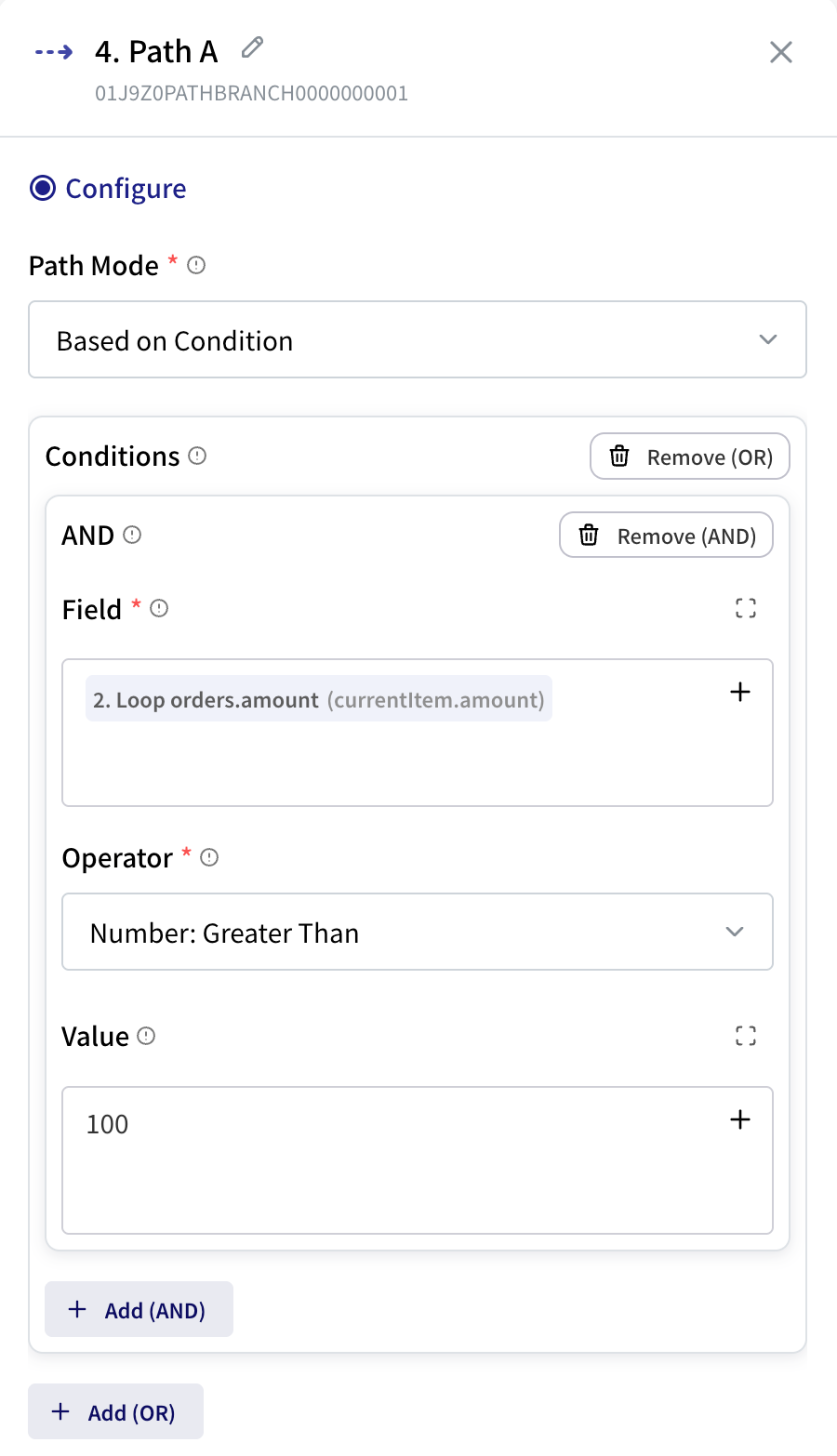
To combine conditions:
- Add (AND) adds a condition that must also be true.
- Add (OR) adds another group. The branch matches if any group is true.
For example, "amount is over 100 and country is JP, or customer is VIP" is two groups: the first with two AND conditions, the second with one.
3. Add the steps for each branch
Click the + under a branch to add the steps that run on that route.
Make sure exactly one branch runs
Every branch whose conditions are true runs, not just the first. For "one route or the other":
- Write conditions that can't be true at the same time, such as greater than 100, between 10 and 100, and less than 10.
- Set the last branch to Fallback, so anything the others miss still has a route.
A Paths step can have only one Fallback branch, and can't have both an Always Run and a Fallback branch.
Check which branch ran
Open the run in Executions. Steps on branches that weren't taken didn't run. If a later step refers to one of them, its reference stays as plain text. See When a reference finds nothing.