

Add form responses to CRM
When someone fills in a DECA Forms form, such as a contact or event sign-up form, add them to DECA CRM, or update their record if they're already there. Matching on email address keeps one record per person, however many forms they fill in.
You'll need:
- A form in DECA Forms that asks for at least an email address.
- An object in DECA CRM for people, such as Contacts, with an email field and a field for each answer you want to keep.
1. Start the flow when a response arrives
- Create a flow and click Add trigger.
- Open DECA Cloud, choose Forms, then the Response Created event.
The trigger fires for a new response to any form in your organization. Add a Path that continues only for your form, as in Save form responses to Tables.
2. Add or update the record
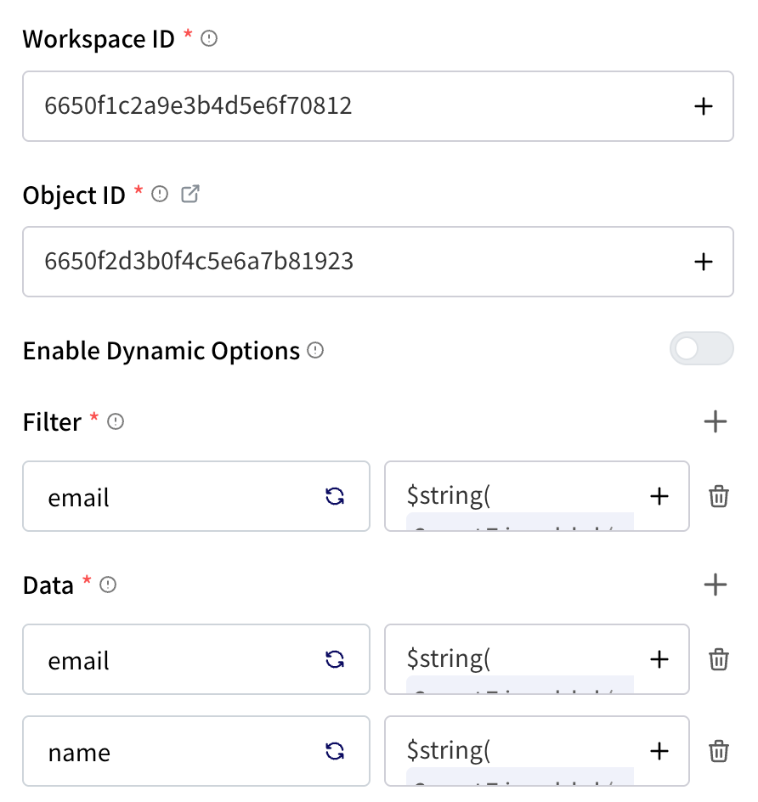
On the Path branch, click Add Step, open DECA Cloud, choose CRM, then Upsert Record.
Enter the Workspace ID and the Object ID of your contacts object. You can copy them from the object's URL in CRM.
Filter: how to find an existing record. Add one row: your email field, with the email answer as the value:
$string($trigger.output.answers[question.label="Email"].response.flatAnswer)Change
Emailto the exact label of the question in your form.Data: the fields to write. Add a row for each field, with the matching answer, in the same way. Include the email field here too. CRM doesn't copy the filter into a record it creates, so without it the next response from the same person would create a duplicate.
For a choice field in CRM, you can pass the option's label, such as Newsletter, and CRM finds the matching option.
What Upsert does
| Records that match the filter | Result |
|---|---|
| None | A new record is created from Data. |
| 1 to 10 | Those records are updated with Data. |
| More than 10 | Nothing is written, and the step fails. |
The step's output says which happened: data.created is true for a new record and false for an update, and data.records holds the records it wrote.
3. Do something with new contacts
Because the output tells new and existing contacts apart, you can treat them differently. Add a Path after the Upsert step with the condition data.created Is True, and on that branch:
- Post to your sales channel. See Send a notification.
- Send a welcome email with Mail › Send Mail.
- Log where they came from with CRM › Create Activity.
4. Publish and test
Form responses start the published version of a flow, so click Publish. Submit the form twice with the same email address and open Executions: the first run should show created: true, and the second created: false, with one record in CRM.
If something's wrong
| What you see | Likely cause |
|---|---|
| A duplicate record for each response | The email field is in Filter but not in Data. |
| The step fails with too many matches | The filter matches more than 10 records, for example because the email answer was empty. Add a Path before the step that continues only when the email Is Not Empty. |
| A field stays empty | The question label in the expression doesn't match the form exactly. |
| The emails don't match an existing record | CRM compares values exactly. Make the form answer lower-case with $lowercase(...) if your CRM data is lower-case. |