

Work with files
Flows can read files, such as a price list someone uploads every month, and create them, such as a CSV report or a PDF quote. This guide walks through three common jobs: importing a CSV, emailing a generated report, and making a PDF from a template.
Where files live
A run handles files in two places. Knowing which is which explains most of the settings:
| Place | Keeps a file | Steps refer to a file by |
|---|---|---|
| Storage (the Files tab in the sidebar) | Until someone deletes it | Its File ID |
| The run's working area | Only until the run ends | Its file name |
File Storage › Download File copies a file from Storage into the working area, and Upload File copies one the other way. Steps that read or write file contents, such as Extract from File and Convert to File, work in the working area. See Storage for the full picture.
Some fields take a file directly, such as Attachments in Mail › Send Mail. They offer two choices:
- Reference: a file from an earlier step in this run. Type
$, choose the step, then the field that holds the file. - Attach new: a file you upload now, which every run then uses.
Import a CSV into Tables
Someone uploads a CSV to Storage, and the flow adds each row to a table.
Upload the CSV in Storage › Files, and copy its File ID.
In the flow, click Add Step, open Built-in, choose File Storage, then Download File. Paste the ID into File Storage ID.
Add Built-in › Extract from File › Parse CSV to JSON. Set File Name to the Download step's
fileName. Leave Has Header on if the first row holds column names.The rows are in the step's
data, one object per row, keyed by column name:json[ { "sku": "P-100", "name": "Green tea", "price": "1200" }, { "sku": "P-101", "name": "Hojicha", "price": "980" } ]Add a Loop with Value set to that
datareference, and inside it a Tables › Create Record step that mapsLoop.currentItem.skuand the other columns to fields.
All CSV values arrive as text. For a number field, convert it with an expression such as $number($.<Loop step>.output.currentItem.price).
Importing a new file each time
To pick up whichever file was uploaded most recently, use File Storage › List Files before Download File and take the newest file's ID, instead of pasting a fixed one.
Email a CSV report
A scheduled flow lists records, writes them to a CSV and emails it.
Get the data, for example with Tables › List Records.
Save as CSV needs the CSV as text, one line per row. Build it in a Code step with the records as an input parameter called
rows:jsconst header = "Name,Email,Plan"; const lines = rows.map((r) => [r.name, r.email, r.plan].map((v) => `"${String(v ?? "").replace(/"/g, '""')}"`).join(",")); return [header, ...lines].join("\n");Add Built-in › Convert to File › Save as CSV. Set Content to the Code step's
results, and File Name to something likecustomers.csv.Add Built-in › Mail › Send Mail. Under Attachments, add an item, choose Reference, and pick the Save as CSV step's file.
To keep a copy as well, add File Storage › Upload File with EFS File Name set to the same file name. Its output has the new file's fileId.
Attachments can be at most 3 MB each, with up to 10 per email. For bigger reports, upload the file to Storage and send a link or a File ID instead.
Make a PDF from a template
PDF › Generate PDF turns HTML into a PDF and saves it to Storage.
Add Built-in › PDF › Generate PDF.
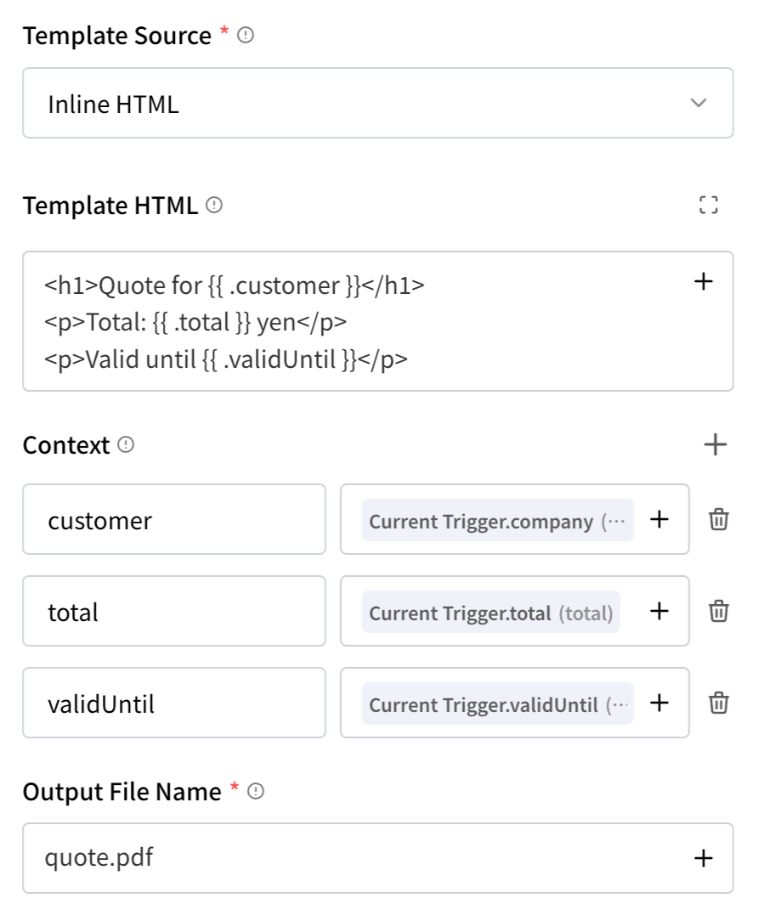
Template Source: Inline HTML to write the HTML in the step, or a file to use an HTML template uploaded to Storage.
Write the template. Put placeholders like
{{ .customer }}where values go:html<h1>Quote for {{ .customer }}</h1> <p>Total: {{ .total }} yen</p> <p>Valid until {{ .validUntil }}</p>Context: an object whose keys match the placeholders, with values from earlier steps, such as
customerset to Current Trigger.company.Output File Name: the name of the PDF, such as
quote.pdf.
The step's output has the PDF's fileId in Storage, so you can find it later or send it on. To email it, pick the PDF step's file in the Mail step's Attachments with Reference.
Placeholders use Go template syntax, so {{ range .items }}…{{ end }} repeats a block for each item in a list.
Other things you can do with files
| Job | Steps |
|---|---|
| Read the text of a document so an LLM can summarise it | Extract from File › Extract File to Text, then an LLM step |
| Save an API response that is a file, such as an image | HTTP with Response Format set to File, then File Storage › Upload File |
| Save JSON for another flow to read later | File Storage › Upload File with Binary File Mode off and the JSON in File Content |
| Clean up old generated files | File Storage › List Files, a Loop, and Delete File |