

Summarize LiveChat conversations
When a DECA LiveChat conversation is closed, have AI write a short summary and attach it to the conversation as a memo. The next operator who picks up the same customer sees what happened at a glance, without scrolling through the whole chat. The same summary can also go to DECA Tables for reporting.
1. Start the flow when a conversation closes
- Create a flow and click Add trigger.
- Open DECA Cloud, choose LiveChat, then the Conversation Closed event.
The conversation's ID is at conversation.id in the trigger's output.
2. Get the messages
- Click Add Step, open DECA Cloud, choose LiveChat, then Get Conversation Messages.
- Conversation ID: Current Trigger ›
conversation.id. - Per Page: how many messages to fetch, such as
100. Most conversations fit in one page.
The messages are in the step's data. Each has the sender with its type, such as enduser or operator, and the text at data.text.
3. Turn the messages into a transcript
An LLM works best with plain text. Add Built-in › Code › Run JavaScript with an input parameter messages set to the Get Conversation Messages step's data, and this code:
return messages
  .filter((m) => m.data && m.data.text)
  .sort((a, b) => a.created.localeCompare(b.created))
  .map((m) => `${m.sender.type === "enduser" ? "Customer" : "Operator"}: ${m.data.text}`)
  .join("\n");
The result is a transcript like:
Customer: My order hasn't arrived yet.
Operator: Sorry about that. Could you tell me the order number?
Customer: A-1042
Images and other non-text messages are left out.
4. Write the summary
Add AI › LLM › Text Chat.
Add a System message:
Summarize this support chat for the next operator. Use at most three bullet points: what the customer wanted, what was done, and anything still open. Write in the language of the chat.
Add a User message with the Code step's
results.Set Temperature to about
0.2for consistent summaries.
See Draft a reply with AI for more on the LLM step.
5. Save the summary as a memo
Add DECA Cloud › LiveChat › Add Conversation Memo:
- Conversation ID: Current Trigger ›
conversation.id - Memo: the summary, from the LLM step. The
$list doesn't offer it, so type the reference:$.<LLM step ID>.output.response.choices[0].message.content.
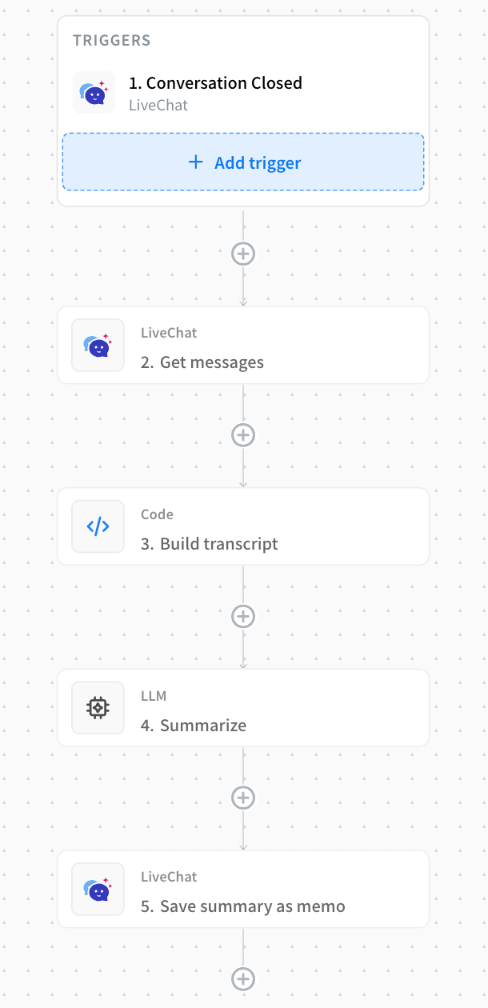
6. Publish and test
Click Publish, then close a test conversation in LiveChat. Open Executions to follow the run, and check the memo on the conversation.
Also keep it in Tables
For a weekly review of what customers ask about, add a Tables › Create Record step after the memo with the conversation ID, the closing date and the summary. To get a category you can count, ask the LLM for JSON instead of text, with a category and a summary field. See Get structured answers instead of text.
If something's wrong
| What you see | Likely cause |
|---|---|
| No run appears when a conversation closes | The flow isn't published. |
| The summary misses the end of the chat | The conversation has more messages than Per Page. Raise it. |
The memo contains $.…output.response… as text | The step ID in the reference is wrong, or the LLM step failed. Check the run in Executions. |