

Reuse code with Functions
A Function is a piece of JavaScript saved once in the workspace and used from any flow. Where a Code step belongs to one flow, a Function is shared: fix a bug in it once and every flow that calls it gets the fix.
Use a Function for logic you need in more than one place, such as calculating a price with your discount rules, validating a Japanese postcode, or turning an API response into the shape your tables use.
1. Create the function
- Open Functions in the sidebar, click Create a Function, and choose From Scratch. (Import from file loads a function exported from another workspace.)
- Give it a Function Name and a description that says what it does. People pick functions by name in their flows, so
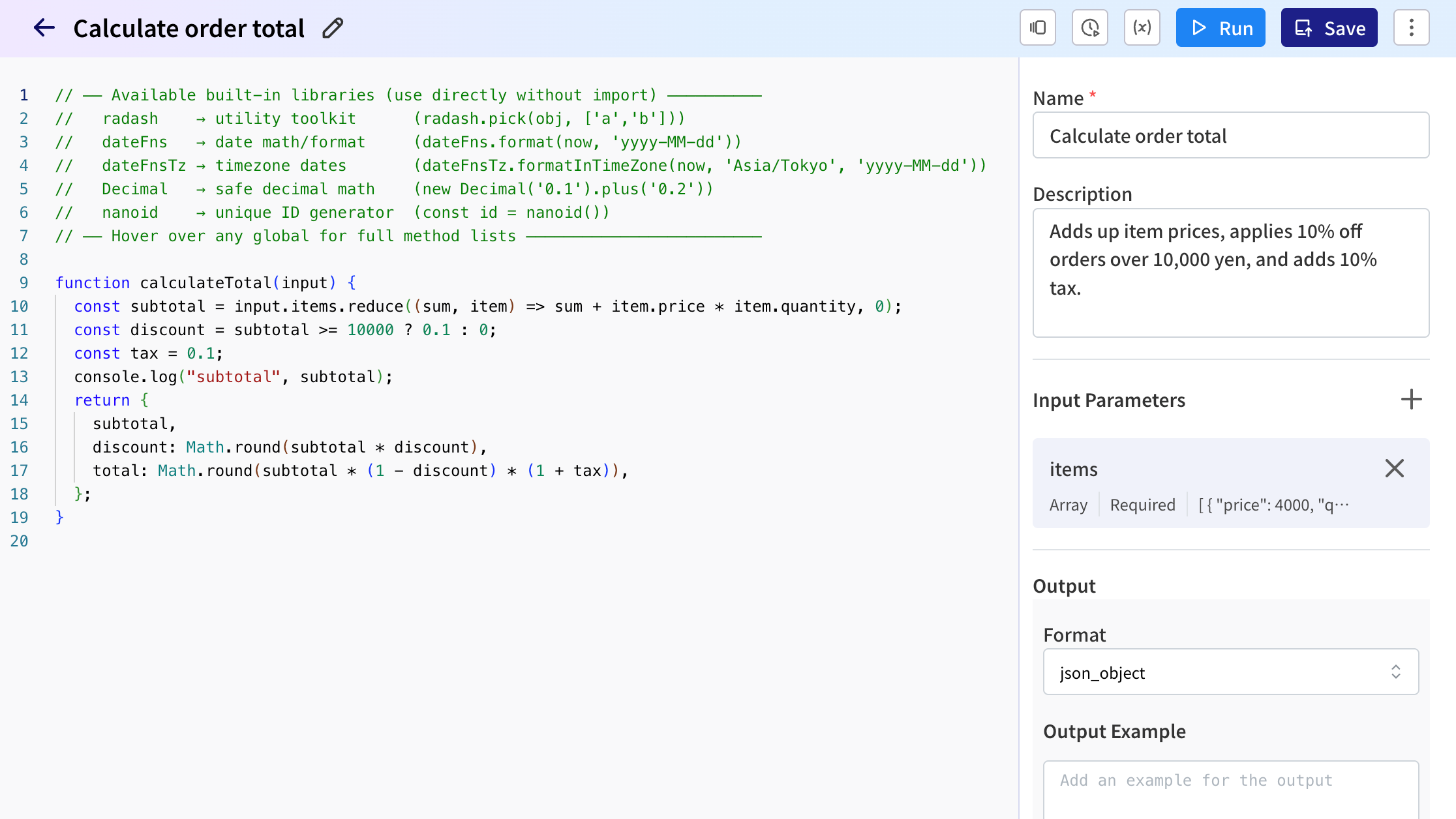
Calculate order totalis better thancalc2.
The builder opens with starter code on the left, and the function's name, description, Input Parameters and Output on the right. The starter code has a sample greeting parameter. Remove it when you add your own.
2. Define the inputs
Under Input Parameters, click Create Input Parameter for each value the function needs:
| Setting | What it's for |
|---|---|
| Name | The name the code uses, such as items. Use letters, numbers and _. |
| Type | String, Number, Boolean, Object or Array. |
| Required | Whether a flow must provide it. |
| Default Value | Used when a flow leaves it out. |
| Description | What to pass in. Flow builders see it when they use the function. |
3. Write the code
Write a named function. AI Studio calls the first function name(...) in the code, and what it returns is the function's output. How it receives the inputs depends on its parameters:
- One parameter, such as
function calculateTotal(input): it gets every input parameter as one object, soinput.itemsis theitemsparameter. - Several parameters, such as
function calculateTotal(items, coupon): each is filled with the input parameter of the same name.
For example:
function calculateTotal(input) {
  const subtotal = input.items.reduce((sum, item) => sum + item.price * item.quantity, 0);
  const discount = subtotal >= 10000 ? 0.1 : 0;
  const tax = 0.1;
  return {
    subtotal,
    discount: Math.round(subtotal * discount),
    total: Math.round(subtotal * (1 - discount) * (1 + tax)),
  };
}
The comment at the top of the starter code lists the libraries you can use without importing them: radash, dateFns, dateFnsTz, Decimal and nanoid. console.log(...) lines show up under Logs when you run the function.
4. Test it
- Run uses each input parameter's Default Value, so give your parameters realistic defaults. For Object and Array parameters, enter JSON, such as
[{"price": 4000, "quantity": 3}]. - Click Run. A panel opens with Input, Output, Logs and Error tabs.
- Optionally fill in Output Example with a sample of what the function returns, so flow builders know what to expect.
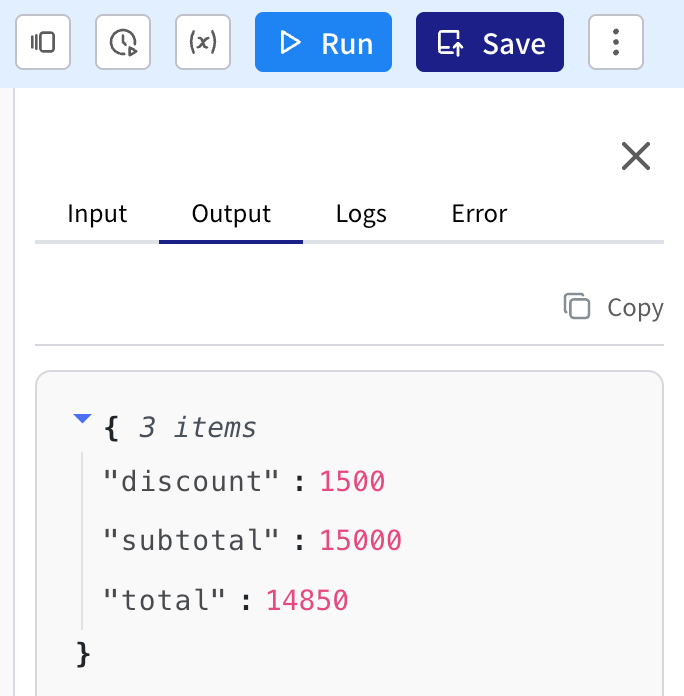
Click Save when it works. Saving publishes the function, and Version history in the toolbar lists earlier versions.
5. Call it from a flow
In the flow, click Add Step, open Built-in, choose Function, then Execute Function.
Pick your function in Function.
Under Input, add an entry for each input parameter. The key is the parameter name, and the value is usually a reference, alone in the field so that lists and objects keep their type:
Key Value items$trigger.output.itemsLater steps read the result from the step's
output, for example$.<Function step>.output.output.total. If the function returns a single value or a list rather than an object, it's atoutput.value.
If the code throws an error, the step fails and the message is in the step's error. See Handle errors and retries.
Changing a function that flows use
Flows call the function's latest saved version, including flows that are already published. That's the point of a Function, but it also means a mistake reaches every flow at once. Before you save a change:
- Keep the inputs and output compatible. Add new inputs as optional, and don't rename or remove output fields that flows use.
- Test with the inputs real flows send. Copy them from a run in Executions.
- For a change that isn't compatible, use Duplicate in the ⋮ menu and point flows at the copy one at a time.
Function or Code step?
| Code step | Function | |
|---|---|---|
| Lives in | One flow | The workspace |
| Changes take effect | When you publish the flow | When you save the function |
| Test it | By running the flow | On its own, with Run |
| Good for | A one-off reshape | Shared business rules |