

Loop over a list of items
When a step gives you a list, such as records from Tables, rows from a CSV or orders from an API, use a Loop to run the same steps once for each item. This guide loops over a list of orders and handles each one.
1. Add the loop
- After the step that produces the list, click Add Step, open Built-in, choose Loop, then Loop Items.
- Set Value to the list. Type
$and pick the field from the earlier step that holds the list, such as theordersfield of the trigger. Leave nothing else in the field, so the list stays a list. - Keep Maximum Iterations at
1000, or lower it to cap how many items are processed.
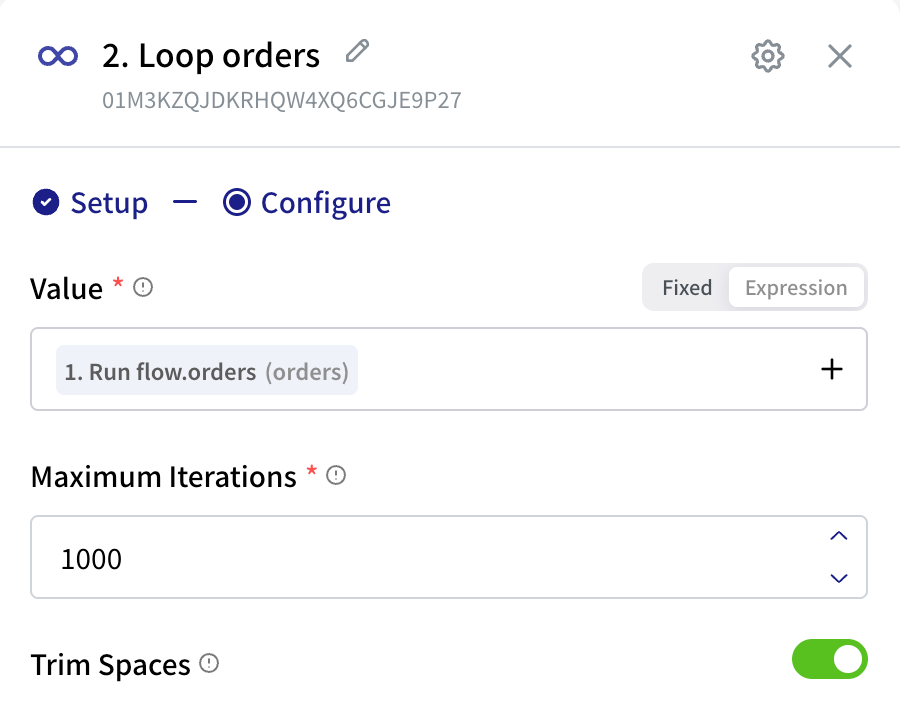
2. Add the steps to repeat
On the canvas, the loop is drawn as a box. Steps you add inside the box run once per item. Steps you add below the box run once, after every item has been handled.
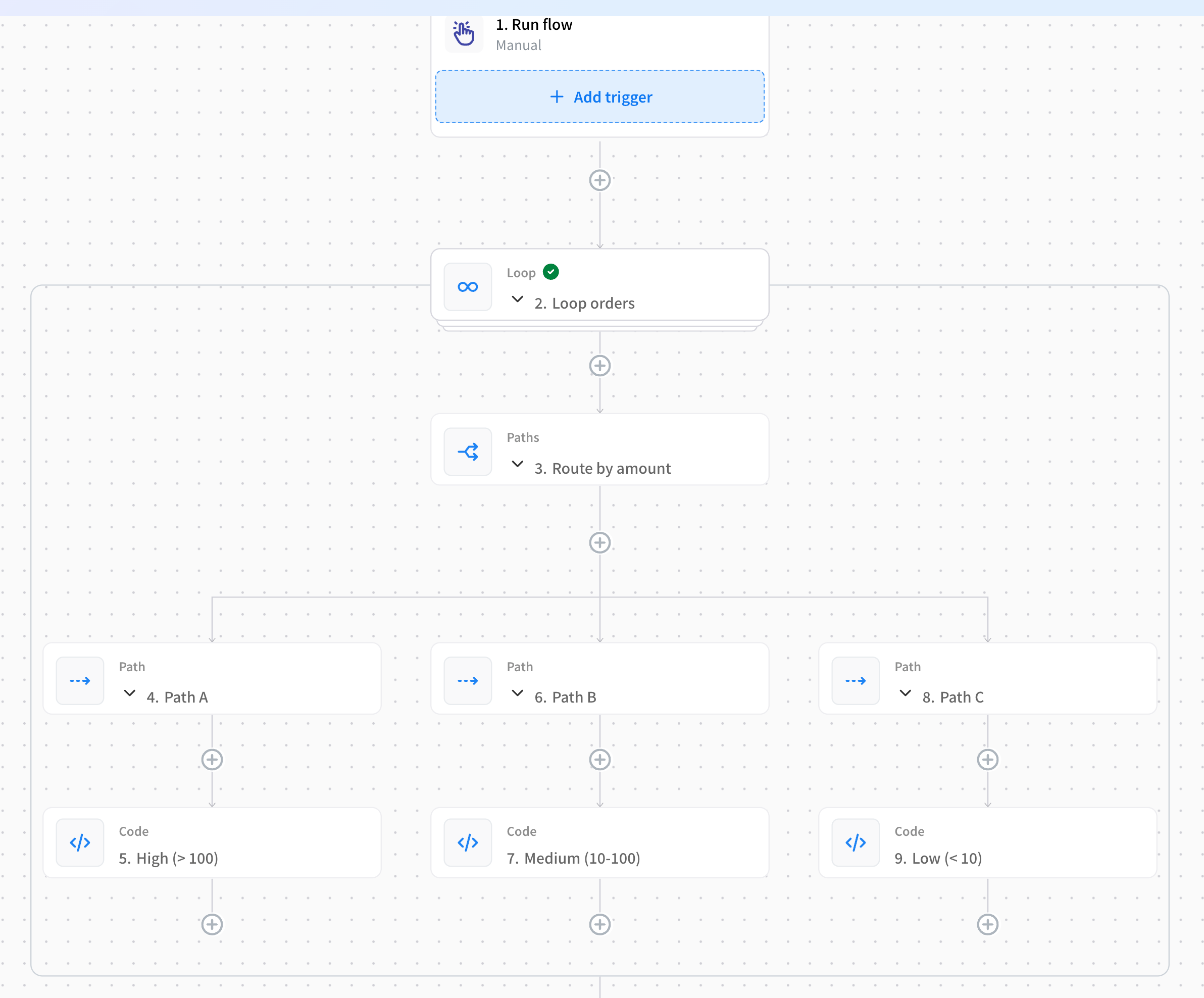
Click the + inside the box to add the first step to repeat.
3. Use the current item
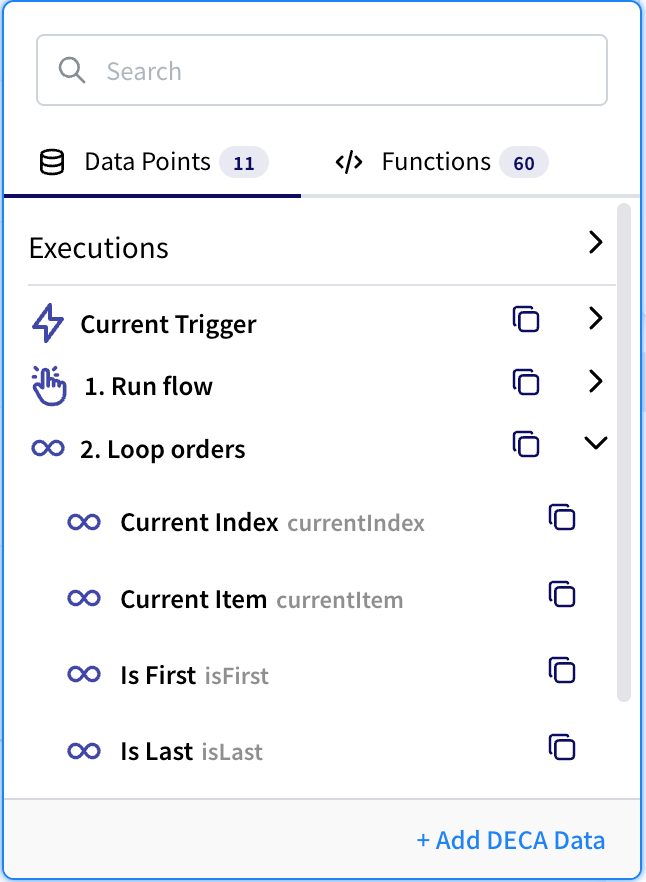
Inside the loop, read the item being handled from the Loop step. In the $ list, open the Loop step:
| Pick | Gives you |
|---|---|
Current Item (currentItem) | The item being handled. Add a field name for one of its fields, such as currentItem.email. |
Current Index (currentIndex) | The item's position, starting at 0. |
For example, to email each customer, set the email step's To to Loop orders.currentItem.email.
Collect results from every item
Each pass through the loop replaces the previous one's outputs, so to keep something from every item, save it as you go:
- Inside the loop, add Variables › Push Value Onto List with Scope Type set to Within flow, a key such as
results, and the value to keep. - Below the loop, add Variables › Get Value with the same key. Its output
valueis the full list.
Within flow values are cleared when the run ends, so runs don't mix.
Stop early
To leave the loop before the end, for example once you've found what you're looking for, add a Stop step inside the loop, usually on a Path branch. The flow carries on with the first step below the loop.
Good to know
- Empty lists: if the list is empty, the steps inside the loop don't run, and the flow continues below the loop.
- Long lists: once Maximum Iterations is reached, the loop stops without an error and the remaining items are skipped. Check the list's length with
$count(...)if that matters. - No loops inside loops: the picker doesn't offer Loop inside a loop. Move the inner steps into a sub-flow and call it from the loop.
- Failing items: by default, a failing step stops the whole run. To skip a bad item and continue, set that step's Error Handling to Continue flow.
Other kinds of loop
| Action | Repeats over | Current value |
|---|---|---|
| Loop from Numbers | Numbers from Start to End (included), going up by Step. 1 to 5 runs five times. | currentValue |
| Loop Text | Parts of a piece of text, split by Delimiter. | currentPart |