

Save form responses to Tables
Every time someone submits a form in DECA Forms, add their answers as a new record in DECA Tables. This guide covers starting a flow from another DECA product and mapping its data into another one.
You'll need:
- A form in DECA Forms, for example Contact us with the questions Name, Email and Message.
- A table in DECA Tables with a column for each answer you want to keep.
1. Start the flow when a response arrives
- Create a flow and click Add trigger.
- In Choose a trigger, open DECA Cloud, choose Forms, then choose the Response Created event.
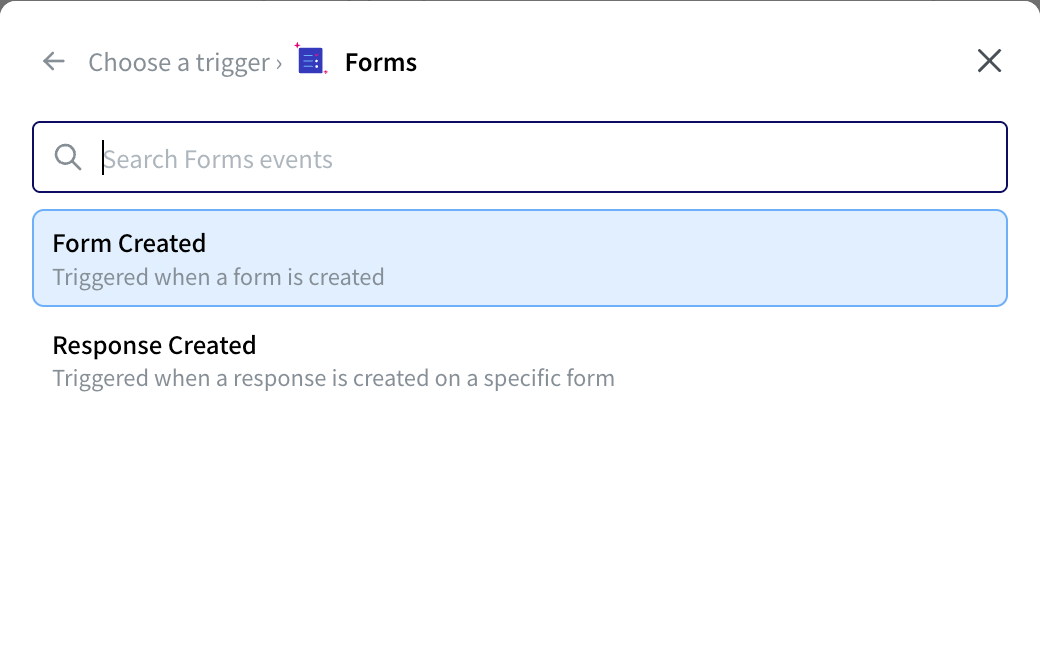
The trigger has no settings. It fires for a new response to any form in your organization, so the next step checks which form it came from.
2. Continue only for your form
- Click Add Step, open Built-in and choose Path.
- Set the first branch's Path Mode to Based on Condition, with this condition:
- Field: type
$, choose Current Trigger, thenform.name. - Operator: String: Equals
- Value:
Contact us
- Field: type
- Add the next steps to this branch. Responses to other forms match no branch, so the run stops there.
Use the form ID if names might change
A condition on form.name stops matching if someone renames the form. After your first test run, copy the form's ID from the run's trigger output and compare form.id instead.
3. Create the record
- On the Path branch, click Add Step, open DECA Cloud, choose Tables, then Create Record.
- Pick the Base ID and Table ID of your table.
- Under Records, add a record, then add one entry per column: pick the column, then set its value from the form response.
Form answers arrive as a list, one item per question:
{
  "form": { "id": "…", "name": "Contact us" },
  "answers": [
    { "question": { "label": "Name" },  "response": { "flatAnswer": "Aiko Tanaka" } },
    { "question": { "label": "Email" }, "response": { "flatAnswer": "aiko@example.com" } }
  ]
}
To get one answer, look it up by its question's label. Set the column's value to:
$string($trigger.output.answers[question.label="Email"].response.flatAnswer)Change Email to the exact question label, matching capitals and spaces. Do the same for each column.
Why not answers[1]?
$trigger.output.answers[1].response.flatAnswer also works, and it's what the $ picker builds. But it picks an answer by position, so it breaks if someone adds or reorders questions in the form. Looking answers up by label keeps working.
4. Publish and test
Form responses start the published version of a flow, so click Publish first. Then submit your form and open Executions to see the run. Select the Create Record step to see the record it created, and check the new row in Tables.
If something's wrong
| What you see | Likely cause |
|---|---|
| No run appears after a submission | The flow isn't published, or the latest changes weren't published. |
| The run stops after Path | The form name in the condition doesn't match exactly. Check form.name in the run's trigger output. |
| A column is empty | The question label in the expression doesn't match the form exactly. |
A column contains $trigger.output… as text | The expression has text around it. A function only runs when it's the whole value. |