

Using data from earlier steps
Most flows pass data along. A form is submitted, a step looks up the customer, another drafts a reply using the customer's name, and a last step emails it. Each step uses what the steps before it produced.
You do this with data references: placeholders in a step's settings that AI Studio replaces with real values when the flow runs.
Inserting a reference
- Click into a field in a step's settings.
- Type
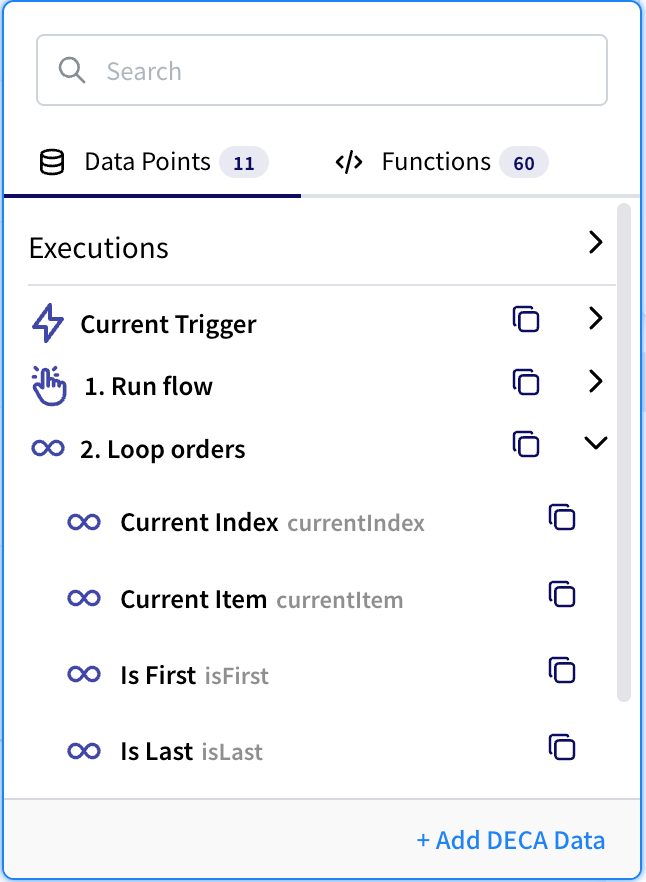
$. A list opens with everything you can use:- Current Trigger: the data of the event that started the run.
- Nodes: each earlier step, numbered in flow order, such as 2. Find customer.
- Execution: details about the run itself, such as its run ID.
- Choose a step, then the field you want, such as
email.
The reference appears in the field as a chip, for example Find customer.email. You can put text around it:
Hi Find customer.first_name, thanks for getting in touch.
When the flow runs, the chip is replaced with that run's value, such as Hi Aiko, thanks for getting in touch.
You can also click + next to a field to browse the same list in a larger panel, with a Data Points tab for references and a Functions tab for functions.
The list shows what a step can output
The fields come from the step's definition, not from a real run. If a step returns something extra, such as a custom field from an API, you can still type its path by hand. Run the flow once and look at the step in Executions to see exactly what it returned.
What a reference looks like
Behind each chip is a short piece of text. You'll see it if you copy a reference, or when a reference can't be resolved:
| Reference | Means |
|---|---|
$trigger.output.email | The email field of the trigger that started this run. |
$.01JA9F3K7Q2M8XVBC4RTE5NHWD.output.email | The email field of the step whose ID is 01JA9F…. |
$execution.runId | The ID of this run. |
Every step has an ID, the long code after $.. It never changes, so renaming a step doesn't break references to it. You rarely need to type it: pick from the $ list, or use the copy button next to a step in the list.
To go deeper into the data, add more names with dots. Use square brackets for list positions and for names with spaces:
| Reference | Picks |
|---|---|
$trigger.output.customer.address.city | A field inside a field. |
$trigger.output.items[0] | The first item of a list. Counting starts at 0. |
$trigger.output.items[-1] | The last item of a list. |
$trigger.output.items[0].price | A field of the first item. |
$trigger.output['First Name'] | A field whose name has a space or symbol in it. |
The Expressions reference has the full rules.
Text, numbers and lists
How a value is filled in depends on what else is in the field:
- The reference is the whole field. The value keeps its type. A number stays a number, and a list stays a list. Use this to hand a whole list to a Loop step, or a whole object to a Code step.
- The reference is inside other text. The value is turned into text. Lists and objects become JSON text, such as
["a","b"].
So to pass the list of records from List Records into a Loop, put only the reference in the field, with nothing around it.
Transforming values with functions
To change a value on its way in, such as making it upper-case, counting the items in a list or adding up prices, start the field with a function. Pick one from the Functions tab, or type it:
| Field value | Result |
|---|---|
$uppercase($trigger.output.name) | AIKO TANAKA |
$count($trigger.output.items) | 3 |
$sum($trigger.output.items.price) | The total of every item's price. |
$now() | The current date and time. |
A function only runs when it is the whole field. In Total: $sum(...), the function stays as plain text. For larger changes, use a Formatter or Code step. The Expressions reference lists the available functions.
Information about the run
The Execution group gives details of the current run: Flow ID, Run ID, Org ID, Workspace ID, Flow Name, Flow Version, Trigger Type and Started At.
Use run details on their own
An execution value such as $execution.runId is only filled in when it's the whole field. Inside other text it stays as-is. To use it in a sentence, add a Code step with an input parameter whose value is just $execution.runId, build the text in the code, and reference the Code step's output.
When a reference finds nothing
A run doesn't stop because a reference is empty, so it helps to know what you'll get:
| Situation | Result |
|---|---|
| The step didn't run in this execution, for example because it's on a branch that wasn't taken. | The reference text is left unchanged, such as $.01JA9F….output.email. |
| The step ran, but the field isn't in its output. | Empty. Inside text it disappears; as a whole field it's empty (null). |
| A list is empty. | An empty list, []. |
If an email arrives with $.01JA… in it, the referenced step didn't run on that path. Check the execution to see which branch was taken.
Special cases
- Inside a loop: steps in a loop read the current item from the Loop step's output, such as Loop.currentItem. See Loop over a list of items.
- In a Code step: pass data in through Input Params. Each key you add becomes a variable in your code. Put references in the values, not in the code itself.
- Values kept with the Variables node: you can't reference a saved variable directly. Add a Variables step with Get Value, then reference that step's output. See Share values between flows.
- Wait For Webhook: a waiting step's callback URL is in the Execution group as Callback URL for…, so an earlier step can send it to whoever needs to resume the flow. See Pause a flow until someone responds.
Related
- Expressions
- Node catalog: the output fields of every action.
- Trigger catalog: the output fields of every event.