

Answer questions from your knowledge base
When a customer writes in DECA LiveChat, look the question up in DECA Knowledge Base and give the operator a suggested answer, written from your own articles. The operator checks it and replies, which is faster than searching by hand and safer than letting AI reply directly.
You'll need:
- A knowledge base in DECA Knowledge Base with articles that answer common questions.
- DECA LiveChat receiving customer conversations.
1. Start the flow when a message arrives
- Create a flow and click Add trigger.
- Open DECA Cloud, choose LiveChat, then the Message Received event.
The trigger fires for every message in your organization's conversations, including messages from operators. The customer's text is at message.data.text, and the conversation's ID at conversation.id.
2. Continue only for customer messages
- Click Add Step, open Built-in and choose Path.
- Set the first branch's Path Mode to Based on Condition:
- Field: Current Trigger ›
message.sender.type - Operator: String: Equals
- Value:
enduser
- Field: Current Trigger ›
- Add the next steps to this branch.
This check matters. Without it, the flow also runs for operators' messages, and if you later let the flow reply by itself, its own replies would start it again.
3. Ask the knowledge base
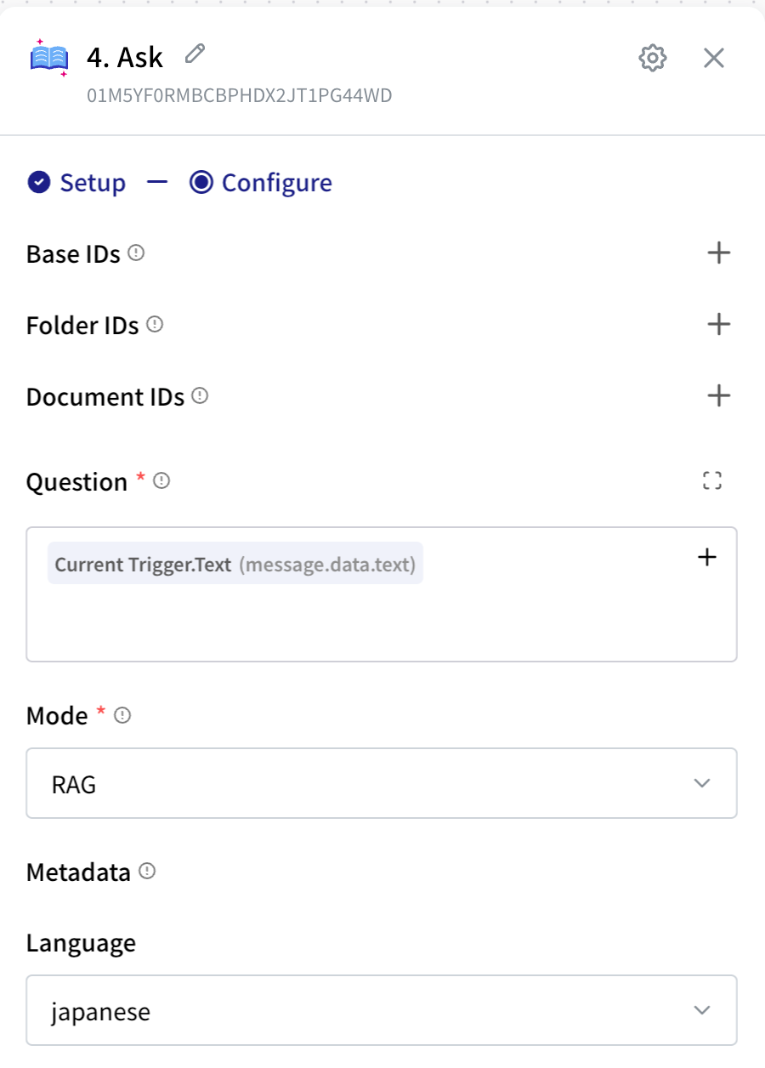
- On the branch, click Add Step, open DECA Cloud, choose Knowledge Base, then Ask.
- Question: Current Trigger ›
message.data.text. - Mode: RAG. The knowledge base finds the relevant articles and writes an answer from them. Search returns matching articles only, without an answer.
- Limit where it looks with Base IDs, Folder IDs or Document IDs, for example only your public FAQ, so internal notes don't end up in answers.
The step outputs the answer, and the references it was based on.
Set Language to the language your customers write in.
4. Hand the answer to the operator
Add a second Path that checks whether the knowledge base found anything:
- Field: the Ask step's
references - Operator: Is Not Empty
On that branch, add DECA Cloud › LiveChat › Add Conversation Memo:
Conversation ID: Current Trigger ›
conversation.idMemo, for example:
Suggested answer: Ask.answer
The operator sees the memo in the conversation and can reply with it, edit it, or ignore it. When nothing was found, no memo is added, and the operator handles the question as usual.
5. Publish and test
Click Publish, then send a test message to your LiveChat channel as a customer would. Open Executions to see the run, and check the memo in LiveChat.
Try a few real questions before relying on it. If answers miss the point, check the articles first: the answer can only be as good as what's written in them.
Reply automatically instead
Once you trust the answers for some kinds of questions, you can reply without the operator:
- Replace the memo with LiveChat › Send Text Message, with the same Conversation ID and the answer as the Message.
- Raise Score Threshold in the Ask step, for example to
0.7, so only answers backed by closely matching articles get through. - Keep the memo branch for everything else.
Customers then get an answer straight away, and the operator only sees the questions the knowledge base couldn't answer well.
Shape the answer
The Ask step writes plain answers. For a particular tone or format, either:
- Fill in Custom Prompt in the Ask step, such as "Answer in polite Japanese, in at most three sentences.", or
- Use Search mode and send the matching articles to an LLM step with your own instructions.
If something's wrong
| What you see | Likely cause |
|---|---|
| No run appears | The flow isn't published, or the message came from an operator. |
| The flow runs for operators' messages, or over and over | The Path in step 2 is missing, so other messages, including the flow's own replies, start it. |
references is always empty | The question doesn't match any article closely enough. Lower Score Threshold, or check the IDs in step 3. |